Parts Delivery Movement — Guide
Overview
Purpose: to manage the movement of parts between Crash Claim HQ and the repair shops, keeping accurate inventory tracking and proof of delivery at every step.
Every part on a claim travels in one of two directions:
- Direct — out from HQ to the Repair Shop
- Reverse — back from the Repair Shop to HQ
Where It Starts
A trip can be kicked off from either of two places — the dashboard or the shared chat channel. Both lead to the exact same search, pickup, and drop-off steps described below; they're just two different front doors into the same process.
Getting to Parts Delivery
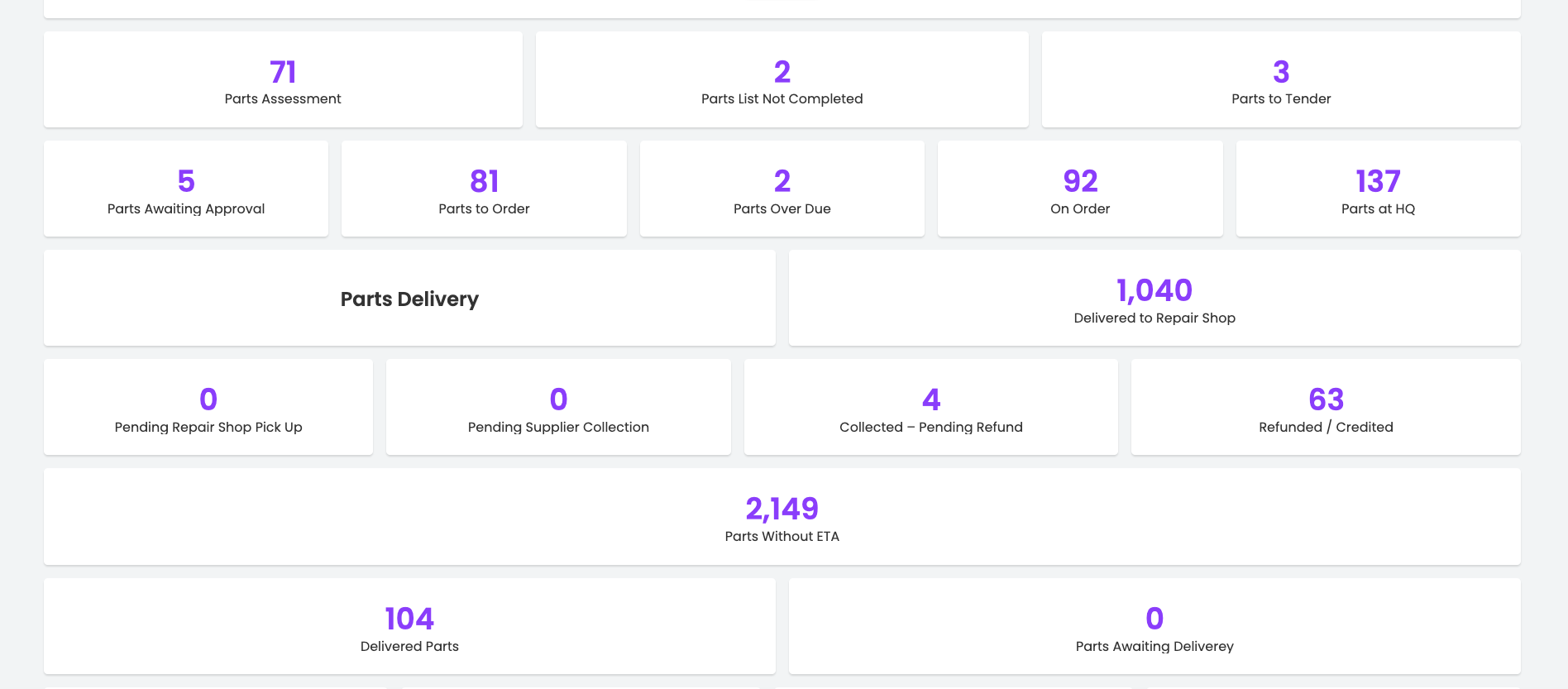
Parts move through several stages before they're ever ready for a delivery trip — assessment, ordering, approval, arriving at HQ — and this overview screen tracks all of it at once: parts being assessed, parts on order, parts overdue, parts sitting at HQ, and so on. The Parts Delivery card in the middle (shown here with its running total of parts delivered to the repair shop) is the doorway into everything described in this guide — clicking it opens the Pickup / Drop-off dashboard below.
The Dashboard
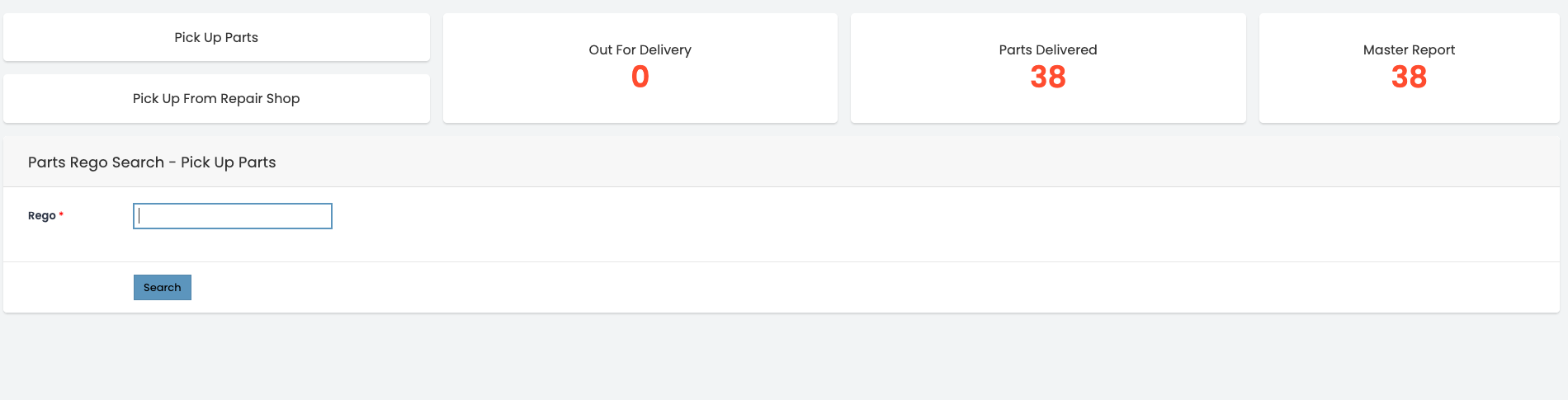
The dashboard opens with two buttons for starting a trip — Pick Up Parts for a Direct trip, and Pick Up From Repair Shop for a Reverse trip — next to three live counters: Out For Delivery (parts currently in transit), Parts Delivered (completed trips), and Master Report (the running total across everything). Whichever button staff choose, the screen underneath opens the same simple search box: enter the Rego and press Search to bring up that vehicle's parts.
Team Chat
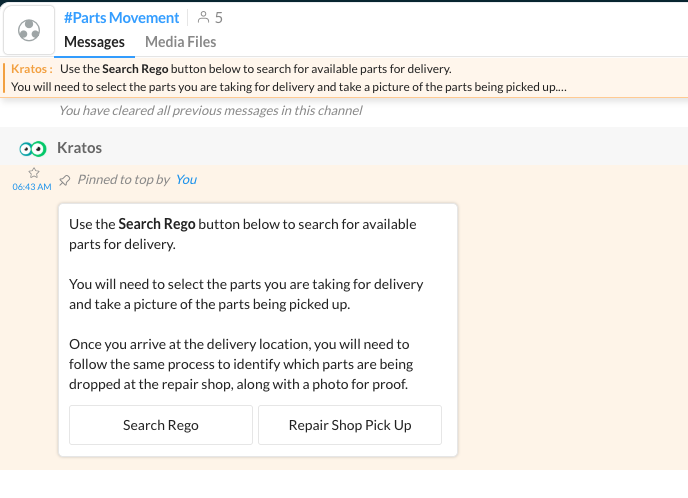
The same trip can be started without leaving chat, in the shared Parts Movement channel. A pinned message from the channel's assistant, Kratos, explains the process and offers two buttons — Search Rego for a Direct trip, and Repair Shop Pick Up for a Reverse trip — so staff can search a rego, confirm the parts, and attach a photo, all inside the conversation.
Direct Movement — HQ → Repair Shop
Used to deliver parts that have arrived at HQ out to the repair shop working on the vehicle.
Searching for a vehicle
Staff only need to enter one thing to search: the vehicle's registration number. There's no need to say whether it's a pickup or a drop-off — the system works that out automatically by checking what stage the parts for that registration are currently at:
- If parts have arrived at HQ and haven't been collected yet (status Arrived), the system shows the Pickup screen, listing only those parts.
- If parts have already been collected and are on their way to the repair shop (status Out for Delivery), the system shows the Drop-off screen instead, listing only the parts from that specific trip.
Starting the search from Pick Up Parts tells the system this is a Direct trip.
If a registration number has more than ten parts moving at once, staff are directed to finish the process in the full dashboard app instead, since a list that long is easier to manage there.
Picking up the parts
The Pickup screen lists every matching part, each with a switch to confirm it's being collected. Staff turn off the switch for anything they're not taking, then must attach a photo — "Take a picture of the parts you are taking for delivery" — before they can submit.
On submit:
-
Each part left switched on is marked Out for Delivery.
-
The photo is saved against the trip as proof of what was collected.
-
An update is posted to the Parts Movement chat channel:
Parts Picked Up From HQ to be Delivered
By: (staff name)
Date:
Time:
Parts: (list of parts)
Delivery Location: (map link to the repair shop)
Photo: (attached)[ Mark As Delivered ]
The Mark As Delivered button is a shortcut straight to the drop-off step below.
Dropping off the parts
When the parts reach the repair shop, staff search the same registration number again. The system now shows the Drop-off screen, listing only the parts from that trip. Staff confirm which parts are being handed over, then must attach a photo — "Take a clear picture of the parts being delivered to the location" — before submitting.
On submit:
-
Each confirmed part is marked Delivered to Repair Shop.
-
The drop-off photo is saved as proof of delivery.
-
A confirmation update is posted to two channels — the Parts Movement channel, and the repair shop's own New Repair Jobs channel, so that shop's team knows a new job's parts have arrived:
Parts Delivered
By: (staff name)
Date:
Time:
Parts: (list of parts)
Location: (drop-off location)
Photo: (attached) -
In the Parts Movement channel, the earlier pickup update (and its thread) is removed once this drop-off message goes up — so that channel only ever shows what's still in transit, not what's already arrived.
Video walkthrough — Direct movement:
Reverse Movement — Repair Shop → HQ
Context: sometimes parts aren't used by the repairer, so the Crash Claim Parts Delivery Team has to collect those parts from the repair shop and bring them back to HQ. The process is essentially the Direct movement in reverse.
Searching for a vehicle
Same as before — staff enter the vehicle's registration number and nothing else. The system checks what stage the return trip is at:
- If parts at the repair shop have been flagged for return and haven't been collected yet (status Pending Repair Shop Pick-Up), the system shows the Pickup screen, listing only those parts.
- If parts have already been collected and are on their way back to HQ (status Picked Up from Repair Shop), the system shows the Drop-off screen instead, listing only the parts from that trip.
Starting the search from Pick Up From Repair Shop tells the system this is a Reverse trip.
Picking up the parts
The Pickup screen lists the parts at the repair shop that are ready to go back, each with a switch to confirm it's being collected. Staff confirm what they're taking, then must attach a photo of the parts being picked up from the repair shop before submitting.
On submit:
-
Each confirmed part is marked Picked Up from Repair Shop.
-
The photo is saved against the trip as proof of what was collected.
-
An update is posted to the Parts Movement chat channel:
Parts Picked Up From Repair Shop to be Delivered
By: (staff name)
Date:
Time:
Parts: (list of parts)
Delivery Location: (map link to HQ)
Photo: (attached)[ Mark As Delivered ]
Dropping off the parts
Once back at HQ, staff are prompted to select the parts being delivered back in — the system shows the Drop-off screen for that trip. Staff confirm what's being handed back, then must attach another photo, taken on return to HQ, before submitting.
On submit:
-
Each confirmed part is marked Delivered Back to HQ.
-
The return photo is saved as proof the parts made it back.
-
A confirmation update is posted to the Parts Movement chat channel:
Parts Delivered
By: (staff name)
Date:
Time:
Parts: (list of parts)
Location: Crash Claim HQ
Photo: (attached)The earlier pickup update (and its thread) is removed from the channel once this drop-off message goes up — so the channel only ever shows what's still in transit, not what's already arrived.
Video walkthrough — Reverse movement:
Status Changes, Step by Step
Each part carries one status at a time. Here's exactly what it changes to, at each step, for each direction.
Direct Movement
| Step | Status before | Status after | What it means |
|---|---|---|---|
| Part arrives at HQ | — | Arrived | The part is at HQ and ready to be picked for delivery. Not yet part of a trip. |
| Pickup submitted | Arrived | Out for Delivery | The part has left HQ and is on its way to the repair shop. |
| Drop-off submitted | Out for Delivery | Delivered to Repair Shop | The part has been handed over at the repair shop. This trip is complete. |
Reverse Movement
| Step | Status before | Status after | What it means |
|---|---|---|---|
| Part flagged for return | Delivered to Repair Shop | Pending Repair Shop Pick-Up | The part is sitting at the repair shop, no longer needed there, and waiting to be collected. |
| Pickup submitted | Pending Repair Shop Pick-Up | Picked Up from Repair Shop | The part has left the repair shop and is on its way back to HQ. |
| Drop-off submitted | Picked Up from Repair Shop | Delivered Back to HQ | The part is back at HQ. The return is complete. |
Note that Delivered to Repair Shop (the last step of a Direct trip) is also the starting point for a Reverse trip — a part only becomes eligible to be sent back once it has actually arrived at the repair shop.
Change Request
Remove Stage 1 — Pick Up Parts from Crash Claim HQ.
Under the new process, the user will no longer be required to record the collection of parts from Crash Claim HQ. Instead, the user will use a single function to record the delivery of new parts directly to the repair shop.
This changes the workflow from a two-step process to a single-step process, making it more efficient, faster, and easier for users to complete.
New Workflow:
- Search Rego
- Select parts being dropped off
- Follow the current forms workflow
This simplified process removes unnecessary steps while maintaining a complete audit trail of the parts delivery.