Wheel Alignment Dashboard & Flows
Where to Find It
- App: KRATOS: Accident Management Portal
- Page:
Wheel_Alignment_Dashboard - URL: creatorapp.zoho.com.au/clientportal/environment/development/test-claims-management-portal/#Page:Wheel_Alignment_Dashboard
Tabs
| Tab | Purpose |
|---|---|
| New Jobs | Wheel alignment requested, not yet completed |
| Completed - Not Invoiced | Wheel alignment done, not yet invoiced |
| Completed - Invoiced | Wheel alignment done and invoiced |
Tab Criteria
1. New Jobs
New_Job_Images_Additional_Repairs.Wheel_Alignment_Status == "Requested"Wheel_Alignment_logsis not null
Report: Wheel Alignment Report
2. Completed - Not Invoiced
New_Job_Images_Additional_Repairs.Wheel_Alignment_Status == "Completed"Wheel_Alignment_logsis not nullClaims_Management_Form.Status != "Cancel"Claims_Management_Form.Status != "Rejected"Wheel_Alignment_Invoice.Invoice_Status is null
Report: Completed – Not Invoiced - Wheel Alignment Report
3. Completed - Invoiced
New_Job_Images_Additional_Repairs.Wheel_Alignment_Status == "Completed"Wheel_Alignment_logsis not nullClaims_Management_Form.Status != "Cancel"Claims_Management_Form.Status != "Rejected"Wheel_Alignment_Invoice.Invoice_Status == "Sent"Wheel_Alignment_Invoice.Invoice_Status is not null
Report: Completed – Invoiced - Wheel Alignment Report
Custom Buttons
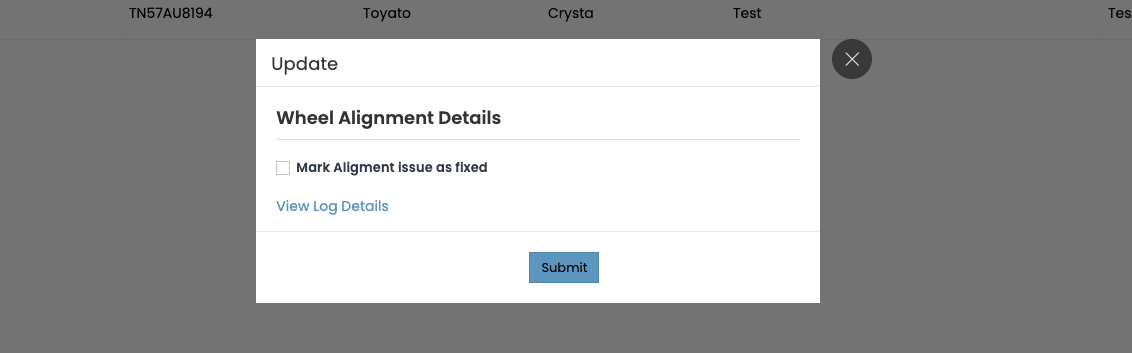
1. Update — New Jobs tab
Opens an Update dialog on the Wheel Alignment Report row, with a Wheel Alignment Details section:
| Field | Required |
|---|---|
| Mark Alignment Issue as fixed (checkbox) |
Also shows a View Log Details link (to the underlying Wheel_Alignment_logs record) and a Submit button.
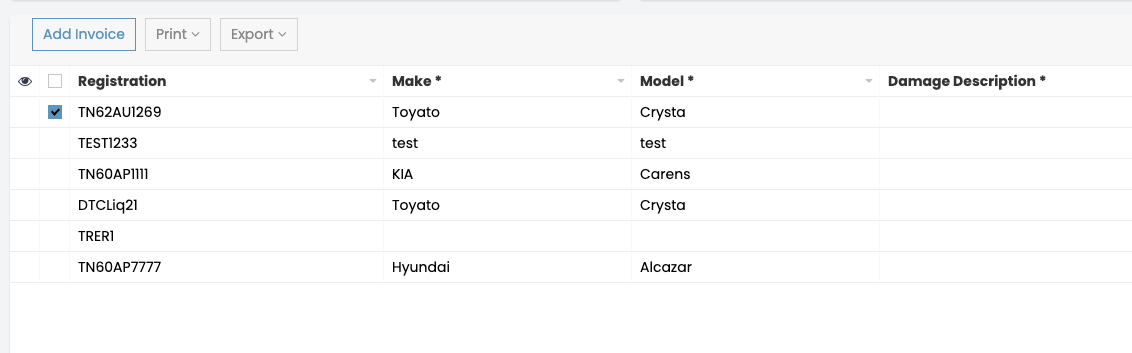
2. Add Invoice — Completed – Not Invoiced tab
Shown on the Completed – Not Invoiced - Wheel Alignment Report grid only when one or more records are selected (checkbox multi-select) — sits alongside Print and Export in the toolbar.
Wheel Alignment Selection Flow
Stage 1 — New Job Images (Kratos / Cliq)
When Wheel Alignment is selected on the New Job Images form, a mandatory sub-menu appears:
| Field | Required |
|---|---|
| Wheel Alignment Type (Pre-Repair / Post-Repair) | ✅ |
- Pre-Repair selected → Wheel Alignment Location field becomes visible.
- Post-Repair selected → no extra field, no change to the movement flow.
Wheel Alignment selected (New Job Images)
        │
        ▼
Sub-menu (mandatory): Pre-Repair / Post-Repair
        │
        ├── Pre-Repair ──► Wheel Alignment Location field shown
        │                          │
        │                          ▼
        │                   Submit → movement immediately before the Repair Shop
        │                   updated to: Current Location → Wheel Alignment Location
        │                          │
        │                          ▼
        │                   Drop off → message pushed to "Wheel Alignment" channel
        │
        └── Post-Repair ─► movement messages unchanged
Stage 2 — Photos to Assign Quoting
A Pre-Repair Wheel Alignment field is added to the Photos to Assign for Quoting channel and Kratos.
| Field | Required |
|---|---|
| Pre-Repair Wheel Alignment (Yes / No) |
- Pre-selected to Yes automatically when Pre-Repair was selected on the New Job Images form (Stage 1). The user can also tick the box manually.
- Selecting Yes (auto or manual) automatically creates the movement to the Wheel Alignment Location, and reveals the Pre Repair Inspection Location field (HQ locations).
Photos to Assign Quoting
        │
        ▼
Pre-Repair Wheel Alignment (Yes/No)
   — auto-Yes if Pre-Repair selected in Stage 1, or ticked manually
        │
        ├── Yes ──► movement to Wheel Alignment Location auto-created
        │           Pre Repair Inspection Location field shown (HQ locations)
        │                  │
        │                  ▼
        │           Submit → movement: Wheel Alignment Location → Pre Repair Inspection Location
        │                  │
        │                  ▼
        │           Drop off → message pushed to "Pre Repair" channel
        │                  │
        │                  ▼
        │           Pre Repair status marked Completed
        │                  │
        │                  ▼
        │           Movement: Pre Repair Inspection Location → Repair Shop
        │
        └── No ───► no Pre Repair Inspection movement
Movement Sequence Summary:
Current Location → Wheel Alignment Location → Pre Repair Inspection Location → Repair Shop
Quoter → Assessor Auto-Populate
Quoter == "John Kako"
        │
        ▼
Assessor field auto-populated to "Better Assessments"
Wheel Alignment Process — Vehicle Pick-Up Flow
Scenario 1 — Vehicle Goes Through a Wheel Alignment Location
Applies when the vehicle's current location at pick-up is Wheel Alignment.
Vehicle Pick-Up Form opened
        │
        ▼
Current vehicle location == Wheel Alignment ?
        │
        ├── Yes ──► "Wheel Alignment Assessment Report" upload field shown
        │                  │
        │                  ▼
        │           Report uploaded
        │                  │
        │                  ▼
        │           Saved to Claims Management Form
        │           + stored in Claim Docs Folder
        │                  │
        │                  ▼
        │           Wheel Alignment Job History fields recorded:
        │             - Date Sent for Wheel Alignment  (date dropped at Wheel Alignment location)
        │             - Date Wheel Alignment Completed  (date picked up from Wheel Alignment location)
        │             - Company  (selected Wheel Alignment sub-location name)
        │                  │
        │                  ▼
        │           Logged to Wheel Alignment Logs Report
        │                  │
        │                  ▼
        │           Job History → Wheel Alignment section: visible
        │           (shown only while a matching Wheel Alignment Logs record exists)
        │
        └── No  ──► go to Scenario 2
The trigger is the vehicle's current location at pick-up time — this flow also runs when a vehicle is picked up from a Wheel Alignment location even if no drop-off to that location was ever recorded in the system.
Scenario 2 — Vehicle Picked Up Directly (No Wheel Alignment Flow)
Applies when the vehicle is picked up directly, without ever being sent for Wheel Alignment.
Vehicle Pick-Up Form opened
        │
        ▼
Current vehicle location != Wheel Alignment
        │
        ▼
Date Sent for Wheel Alignment not captured
Wheel Alignment issue not requested
        │
        ▼
No Wheel Alignment Logs record created
        │
        ▼
Job History → Wheel Alignment section: not visible
Exception: the Wheel Alignment Assessment Report can still be uploaded from the backend and is stored in its usual document location — but that upload does not trigger Wheel Alignment Logs record creation or section visibility.
Wheel Alignment Assessment Report uploaded from backend
        │
        ▼
Stored in document location
        │
        ▼
No Wheel Alignment Logs record created
No change to Job History section visibility
Related
- Claims_Management_Form —
New_Job_Images_Additional_Repairs,Wheel_Alignment,Wheel_Alignment_logs,Wheel_Alignment_Invoice,Status - Quality Control Workflow — sibling Internal Movements flow
- Run Sheet — sibling Internal Movements flow