CCR Settlement Dashboard
1. Overview
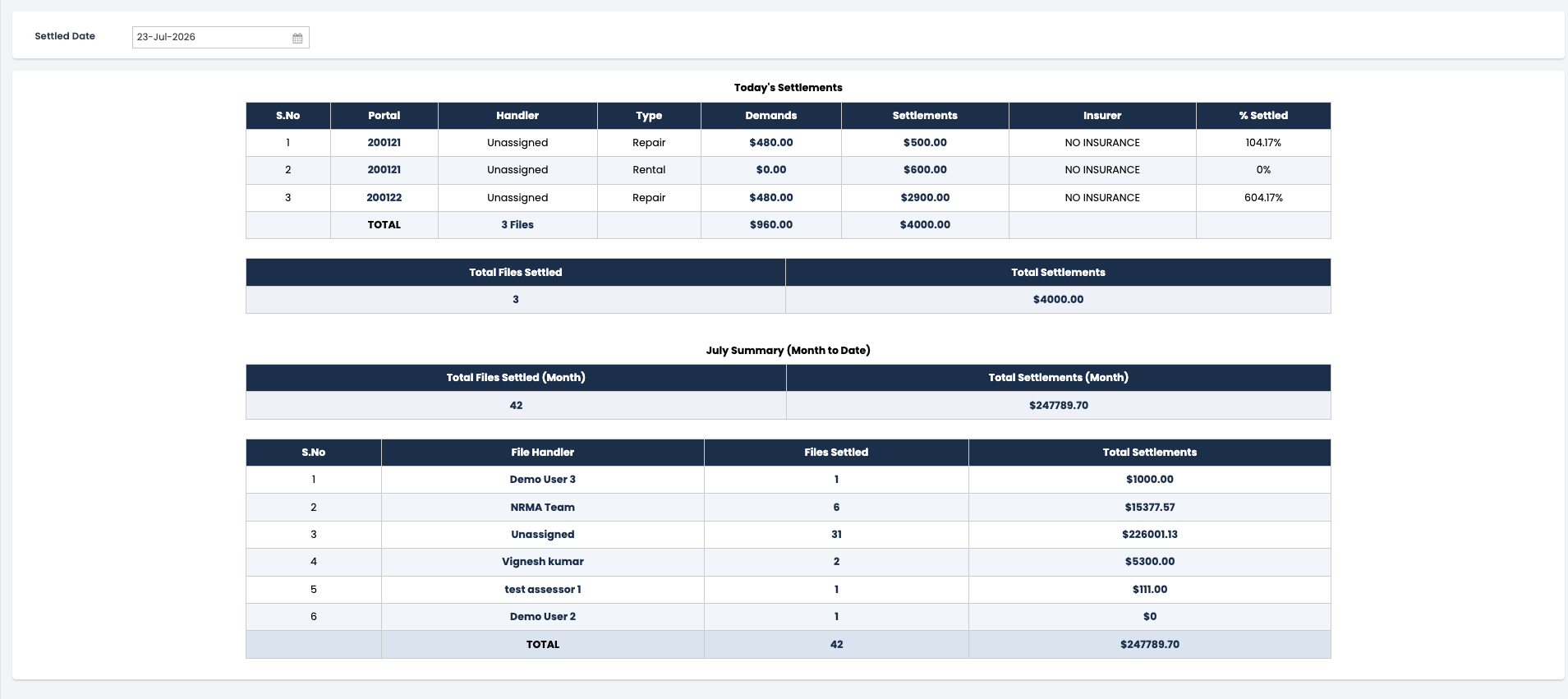
The CCR Settlement Dashboard shows, for a given date, which demands were settled that day, along with a month-to-date rollup broken down by file handler. Every figure on the dashboard is clickable and drills into the underlying "All Demands – CCR" report with matching filters already applied.
2. Configuration & Setup Criteria
2.1 CCR Recovery Firm Configuration
Every demand shown on this dashboard — in both Today's Settlements and Month-to-Date — is restricted to a single Recovery Firm, which is controlled centrally rather than hardcoded:
- There is a Configuration record with a field, Recovery Form CCR, that identifies the CCR Recovery Firm.
- The dashboard reads this configuration once per request and uses it as a mandatory filter: only demands belonging to this Recovery Firm are ever considered, for both the daily and monthly sections.
- If this configuration is blank, missing, or points at the wrong firm, the dashboard will show no data (or the wrong firm's data) — this is the single control point to check first if figures look off.
2.2 NRMA Team Setup
"NRMA Team" is not a separate handler in the system — it's a grouping applied on top of individual users, based on data held on the User record:
- Each user has an NRMA Team checkbox. When checked, that user is treated as part of the NRMA Team for reporting purposes.
- Each NRMA-flagged user also has a Crash Claim Email — this is the email address used to represent that user in the combined NRMA email list.
- The dashboard builds one combined list of NRMA member emails up front (from all users flagged NRMA Team = true), and reuses that same list for every demand that ends up grouped under "NRMA Team."
- This grouping only applies to the Month-to-Date / Handler Summary section. In Today's Settlements, the handler is always shown as the individual person assigned to the demand — the NRMA grouping is not applied there.
- Practically: if someone should appear as part of "NRMA Team" in the monthly Handler Summary, their User record must have NRMA Team checked and a valid Crash Claim Email filled in — otherwise they will show up as an individual handler instead, or as "Unassigned" if no handler is set on the demand at all.
3. Business Rules — Section by Section
3.1 Settled Date Resolution
- The dashboard is driven by one input: Settled Date.
- If left blank, it defaults to today's date.
- The header text changes depending on this: if the resolved date is today, the header reads "Today's Settlements"; otherwise it reads "Settlements for
<Month d, yyyy>".
3.2 Month Range
- The Month-to-Date figures always cover the entire calendar month that contains the reporting date — from the 1st through the last day of that month.
- This is true regardless of which day within the month was selected. Selecting the 10th of a month still pulls the full month's data for the Month-to-Date and Handler Summary sections, not just days 1–10.
3.3 Today's Settlements Table
For every demand settled on the reporting date (belonging to the configured Recovery Firm, active, not cancelled, and linked to a valid file):
| Column | Rule |
|---|---|
| Insurer | Taken from the linked claim's At-Fault Party Insurer; shown as "Unassigned" if not set |
| Demand Value | Calculated per Demand Type (see §4) |
| Settlement Amount | The demand's Settlement Amount; treated as 0 if blank |
| % Settled | Settlement Amount ÷ Demand Value × 100, rounded to 2 decimals — only calculated when the Demand Value is greater than 0 and a Settlement Amount exists; otherwise shown as 0% |
| Handler | The individual person assigned to the demand; "Unassigned" if no handler is set |
| Drill-down link | Opens this single demand in the All Demands – CCR report |
A running total of demand value, settlement amount, and file count is kept as each row is processed.
3.4 Today's Totals / Summary
- One shared link (filtered by the reporting date and the configured Recovery Firm) backs both the TOTAL row at the bottom of the Today's Settlements table and the standalone "Today's Summary" box.
3.5 Month-to-Date Loop & Handler Grouping
For every demand settled anywhere within the reporting month:
- Its settlement amount adds to the month's running file count and total settlements.
- Handler grouping:
- No handler assigned → grouped as "Unassigned," no drill-down link.
- Handler assigned and that person is an NRMA Team member → grouped under "NRMA Team," using the combined NRMA email list as the link filter.
- Handler assigned and that person is not an NRMA Team member → grouped under their own name, using their individual email as the link filter.
- Each demand's drill-down link filters to the full month range and the configured Recovery Firm, plus the relevant handler email(s).
3.6 Month Summary Box
- Shows Total Files Settled and Total Settlements for the whole month, with a drill-down link filtered to the month range and the configured Recovery Firm.
3.7 Handler Summary Table
- Lists every handler group (including "NRMA Team" and "Unassigned") with their files-settled count and total settlements for the month.
- Important: the TOTAL row under this table is not a sum of the visible handler rows — it reuses the Month Summary's totals and link directly. In other words, the Handler Summary is best understood as "Month-to-Date, broken down by handler," and its total will always match the Month Summary box by construction, not by re-adding the rows shown.
3.8 Drill-down Links
Every clickable value opens the same underlying "All Demands – CCR" report, just with different filters applied depending on where it was clicked:
| Where clicked | Filter applied |
|---|---|
| A single demand row (Today's Settlements) | That demand only — no date or firm filter added |
| Today's TOTAL row / Today's Summary box | Reporting date + configured Recovery Firm |
| Month Summary box | Full month range + configured Recovery Firm |
| A Handler Summary row | Full month range + configured Recovery Firm + that handler's email(s) |
| Handler Summary TOTAL row | Same as the Month Summary box |
4. Demand Value Calculation Criteria
The "Demand Value" used for the % Settled calculation depends on the Demand Type:
| Demand Type | What Makes Up the Demand Value |
|---|---|
| Repair | Assessment Value + Assessment Fee + Ceramic (assessment and claim-level figures) |
| Rental | Rental Demand amount + Baby Seat charge |
| Towing & Storage | Tow charge + Storage Fee |
| Supplementary Repair | Demand Value + Assessment Fee, both recorded directly on the demand |
| Insurance Excess / Uninsured Losses / Shortfall | Demand Value recorded directly on the demand |
Note: For Supplementary Repair and Insurance Excess / Uninsured Losses / Shortfall, the figures come straight off the demand record itself. For Repair, Rental, and Towing & Storage, the figures are pulled from the related assessment and claims records instead — so those demand types depend on that upstream data being complete and accurate.
5. Dashboard Layout
| Section | Driven By | What It Shows |
|---|---|---|
| Title | Reporting date | "Today's Settlements" or "Settlements for <date>" |
| Today's Settlements table | Demands settled on the reporting date | S.No, Portal, Handler, Type, Demands, Settlements, Insurer, % Settled — each linked where applicable |
| Today's Settlements TOTAL row | Same-day totals | Files Settled, Total Demands, Total Settlements — linked |
| Today's Summary box | Same-day totals | Total Files Settled, Total Settlements — linked |
| Month Summary box | Full-month totals | Total Files Settled, Total Settlements — linked |
| Handler Summary table | Full-month totals, grouped by handler | S.No, Handler, Files Settled, Total Settlements — linked |
| Handler Summary TOTAL row | Reuses Month Summary totals | Files Settled, Total Settlements — linked to the Month Summary |
6. Key Behavioral Notes
- Month-to-Date always means the full calendar month, not "1st of the month through the selected date" — every monthly figure covers the entire month containing the reporting date.
- Handler Summary is month-scoped, not day-scoped — its rows and TOTAL row are both based on the full month, not the single reporting date used in Today's Settlements.
- Handler Summary's TOTAL row is borrowed from the Month Summary box, not re-added from the visible handler rows — the two will always match by construction.
- NRMA grouping is decided per demand, based on whether that demand's assigned handler is flagged NRMA Team at the time of processing. The link for that group always uses the full combined NRMA email list, not just the specific NRMA agents present in that particular data set.
- A single demand's drill-down link (in Today's Settlements) carries no extra filters beyond identifying that one demand — unlike the TOTAL, Summary, Month, and Handler links, which all include the reporting date/month and Recovery Firm.
7. Reference Points
| Concept | Where It's Controlled |
|---|---|
| Which Recovery Firm's demands appear on this dashboard | Configuration record → Recovery Form CCR |
| Who counts as "NRMA Team" | User record → NRMA Team checkbox + Crash Claim Email |
| How a demand's value is calculated | Demand Type, plus linked assessment/claim data or fields on the demand itself (see §4) |
| Where a drill-down link lands | Always the "All Demands – CCR" report, with filters varying by section (see §3.8) |